
Create your first astrocartography map
Create your first map in AstroCarto with your birth date, local birth time, and birthplace. Keep an unknown time marked as unknown. After generation, confirm the input shown with the map, identify the planet and angle behind a line, and choose the next tool for your location question. A map is the starting point; it does not by itself rank the best cities for you.
What information do I need before I start?
Use the details of the person whose map you want. The birthplace is where that person was born, not where they live now or want to move.
| Input | What to enter | What to check |
|---|---|---|
| Birth Date | The calendar date of birth | Check the year, month, and day rather than copying an unfamiliar date format. |
| Birth Time | The local clock time at birth | Check AM/PM if your device uses it. Keep the birthplace's time, not a conversion to your current city's clock. |
| Birth Location | The birth city and country | Check the full place label so a city with the same name in another country is not selected. |
If you do not know the time, select I don't know my birth time. The map uses 12:00 local time as an estimate and displays a notice; this does not recover the missing birth time. Read how to enter unknown birth-time information before treating a close city comparison or angle line as precise. Some later workflows require an accurate time.
The example below uses 15 January 1990, 12:00, London, United Kingdom as synthetic teaching data. Here 12:00 is the example's chosen birth time, with the unknown-time option off. It is not an instruction to guess noon for your own birth details.
How do I generate the map?
- Open the map generator. Use the main birth-details form; you do not need to start by purchasing a report.
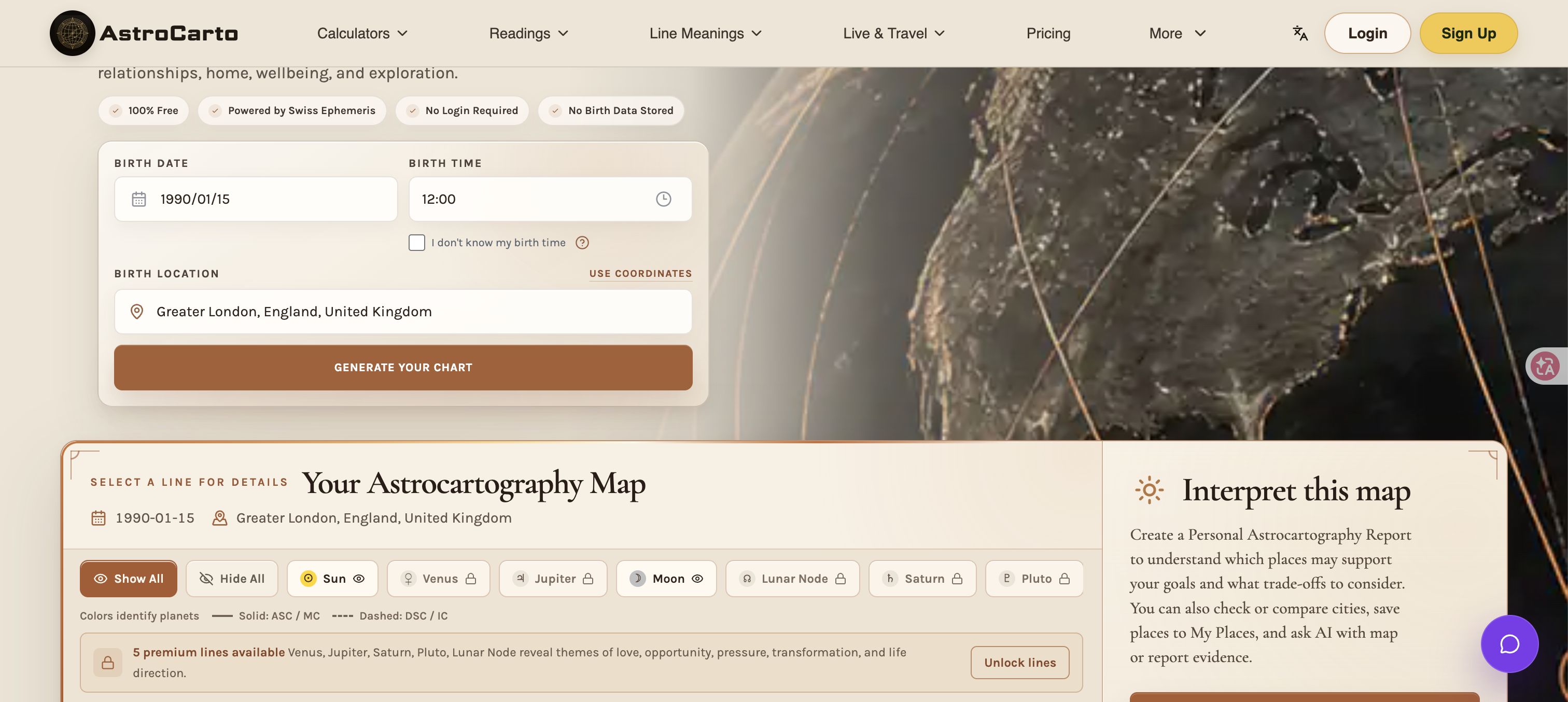
- Enter Birth Date and Birth Time, or select the unknown-time option when appropriate. In our example the date is 1990-01-15 and the time is 12:00.
- Type the birthplace into Birth Location. For this example, search London and check the country in the suggestions. We selected Greater London, England, United Kingdom, rather than London in Canada. Use the result that matches your actual birthplace; typing a name is not a reason to ignore its country.
- Check the three inputs together, then select Generate Your Chart. Wait for the calculation to finish rather than repeatedly pressing the button.
- Look below the form for Your Astrocartography Map. Confirm that its date and place match the intended input before using any line or city tool.
The city-name route is enough for this first-map tutorial. Use coordinates is a different input route; do not switch to it unless you have the correct birth-location coordinates. Likewise, a timezone field that appears for manual input is about the birthplace and birth date, not your current destination.
If the expected map does not appear, check whether a required field is missing, the calculation is still loading, or a failure message is shown. Correct the input identified by the form before trying again. An error or loading state is not a completed map with no relevant lines. If you change the birth details after a map has loaded, generate again and check the new result; editing a field alone does not prove the map has updated.
What should I check on my first map?
In our completed example, the result heading shows 1990-01-15 and Greater London, England, United Kingdom. The birthplace marker's information also shows 12:00. The map contains colored lines, a planet selector, and controls for the next research task. These checks establish which input the displayed result belongs to; they are not a verdict that London is the best place to live.
| Part of the result | How to read it | What to do with it |
|---|---|---|
| Date and birthplace beside the map heading | Identify the calculation you are viewing | Stop and correct the form if these are not the intended person's details. |
| Birthplace marker information | Shows the example's place, date, and time | A birthplace marker is not a destination recommendation or a city ranking. |
| Planet labels and colors | Colors identify planets | Match the line to its named planet; do not use color alone as a good/bad rating. |
| Solid and dashed line guide | Solid covers ASC / MC; dashed covers DSC / IC | Line style narrows the angle group. Select a line for its details rather than assuming every solid line means MC. |
| A lock or Unlock lines message | Some line access is restricted | A locked or hidden line is not evidence that the planet has no line on your map. Check the access message for that action. |
| Research actions beside or below the map | Entry points such as Check City, Compare Cities, and Find My Best Places | Choose one according to the question you have next. Their access conditions are separate from merely generating the map. |
On smaller screens, controls may be arranged differently; use their names to find the same task. For our London-born example, asking about Paris later means selecting Paris as a destination in a city tool. It does not mean replacing London in the birth form.
A useful first note is: “Map for 15 January 1990, 12:00, Greater London; known-time sample. Next question: check Paris as a possible destination.” That note records input and intent. It deliberately makes no claim about Paris's support, distance to a line, or suitability before a city result exists.
Which tool should I use after the map appears?
Take the next question to the appropriate workflow:
| Your question now | Next action | What you will learn |
|---|---|---|
| “What does this one destination look like?” | Open Check City and search for the destination | Nearby lines and city-specific evidence, rather than a ranking of every city. |
| “How do my two to four options compare?” | Open Compare Cities, add those cities, and choose a goal | Support, cautions, and a relative order within your shortlist. |
| “I do not have a shortlist yet.” | Open Find My Best Places and choose a goal and supported region | Candidate places within that search scope, which you can investigate further. |
| “I want a broader written interpretation.” | Open Create Personal Report and review its input and access conditions | A separate report workflow; the map itself is not that report. |
For our example, the next action is Check City for Paris. Keep the same birth details and read the actual city output before making a claim about Paris. The place-selection guide helps if you are deciding between checking one destination, comparing a shortlist, and discovering candidates.
For showing lines and selecting points, follow the interactive map steps. If your immediate question is how to understand the lines, use the map-reading guide. Before leaving, distinguish the map on screen from saved birth details, places, and reports; generating this first map does not mean all later results have been saved to your account.