
Searching for “how to find my astrocartography chart”? Enter your birth date, local birth time, and birthplace below. You’ll get your personal map and can check a city’s nearby planetary lines, with distances that help put the result in context.
How to Find My Astrocartography Chart
Find and check your first map
What you need to find is a map calculated for you
Your astrocartography chart is a world map of planetary lines calculated for your birth moment. You obtain it by entering your own birth details into a map calculator. Your Sun sign alone, a general astrology forecast, or another person’s screenshot cannot supply that personal map.
With AstroCarto, the form above generates the map on this page. You can then inspect a location without entering a second set of birth details. Start with one familiar city; you do not need to decide where to move before seeing your chart.
There are three useful checkpoints. First, the input describes your actual birth record. Second, a map has been generated from those details. Third, a location check identifies the place you intended to inspect and shows its available evidence or a clear result state. Reaching the third checkpoint gives you a concrete starting point for interpretation.
That is a different task from deciding which destination is best. A successful first check establishes what you are looking at, not whether you should live there. If you already have the right map and want to interpret it, continue with the map-reading guide.
Prepare the birth record before choosing a destination
Use the date on your birth record, the local clock time at birth, and the place where the birth happened. Check the year as well as the day and month. A date written as 04/09 may be read differently across countries, so identify the month before copying it into a date field.
For time, check morning versus evening and whether the record uses a twelve-hour or twenty-four-hour clock. Enter the recorded local time, rather than converting it into the time where you live now. If the time is uncertain, keep that uncertainty explicit instead of making the entry look exact.
For birthplace, include the country or region when looking up a city with a common name. London in Ontario and London in England are different choices: confirm the full label in the suggestions. A matching name in another country is not an interchangeable input, particularly when its time zone differs.
| Information | Where it belongs | What to verify |
|---|---|---|
| Date and local time of birth | The birth form | The calendar date, AM/PM, and source of the time |
| Place where you were born | Birth Location | The city, region, and country |
| City you want to explore | Check City, after generation | The destination you mean to inspect |
Keep those two place roles separate even when they happen to be the same city. Someone born in Toronto who is considering Lisbon still enters Toronto in the birth form. Lisbon belongs in the location check afterward. Changing the birth location to a destination changes the input record; it does not simply move the map’s viewing point.
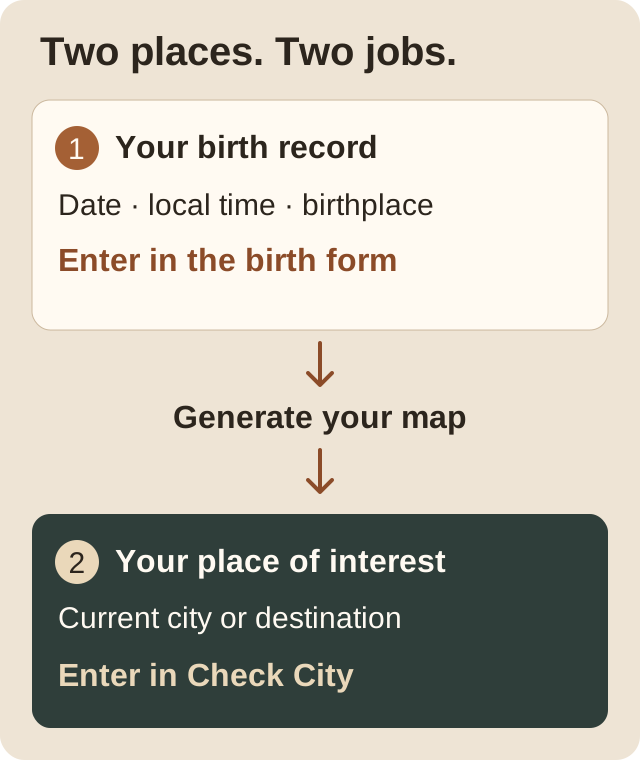
Reading aid: two places have different jobs. This is a workflow diagram, not a calculated map or product screenshot.
How to find my astrocartography chart with incomplete details
You know the birthplace, but search does not find it
Try the fuller place name and confirm the region or country before selecting a result. If the correct location still cannot be matched and you have reliable coordinates for the birthplace, select Use Coordinates first. Switching input modes clears the previous place entry, so paste the coordinate pair after switching.
Use decimal latitude, decimal longitude, separated by a comma. Latitude comes first. North and east use positive numbers; south and west use negative numbers. For example, 40.7128, -74.0060 demonstrates the accepted format. These are teaching coordinates, not a recommendation to use that location for your own birth.
The field accepts numeric pairs, not direction letters or degree symbols. If your source gives degrees, minutes, and seconds, obtain its decimal-degree equivalent; removing the symbols alone is not a conversion. Latitude must be between -90 and 90, and longitude between -180 and 180.
Before generating, compare the order and signs against your source. A pair can pass the format check while pointing to the wrong location. Do not substitute your current home’s coordinates or a nearby large city simply because those are easier to find. The worked example below shows which mistakes a format check catches and which require your attention.
Coordinates identify a place, not a birth time. Keep the recorded local time unchanged when switching input modes. If a time-zone field is shown, review it for the birth location and date, rather than choosing your current time zone.
You do not know the birth time
Select I don’t know my birth time instead of inventing a precise value. AstroCarto uses an estimated noon time in that mode and marks the resulting birth time as estimated. The option lets you explore a map while retaining an important limitation; it does not recover your missing time.
You can learn the controls and identify the kinds of labels the map displays. However, a narrow line placement or a small difference between locations should not be treated as precise personal evidence when the birth time is unknown. Coordinates cannot remove this uncertainty.
If you later obtain a reliable time, update the birth form and generate again before relying on the earlier location notes. For the detailed behavior of this setting, see using an unknown birth time. A family recollection, an estimate, and a recorded time should remain distinguishable in your own notes.
Generate the chart and check that the result appeared
Review the completed form and select Generate Your Chart. Let the calculation finish. The map and its controls appear below the form; the first result is not a separate paid interpretation document that you must wait to receive by email.
Compare the date and birthplace shown with the map against your record, and review the time still entered in the form. If you spot a wrong input or time status, correct it and generate again. Editing a field by itself is not a reason to assume the previous map has already been recalculated.
If no map appears and an error is shown, address that error first. Recheck missing or invalid fields and the selected location. If the input is valid but a request fails, retry when the service is available. An error during generation has no astrological meaning.
Once the map appears, resist the temptation to interpret every line immediately. Your first objective is simpler: establish that you have generated your own chart and can inspect one recognizable place. The geographical map with planetary lines is the relevant result here; a circular natal chart is a different presentation of birth information.
Use Check City to complete the first useful check
Open Check City in the result and search for a city you know. Confirm the resolved location before reading the cards. The birth details stay the same; this search selects a place to inspect within the map already calculated for you.
The available line cards identify a planet and an angle, such as MC or IC, together with an approximate distance and a strength label. Keep the planet and angle together when making a note. “Venus” alone loses part of the result, while a distance without its city loses the geographical context.
For this first check, you only need to answer three questions:
- Did the search select the intended city?
- Which complete line labels are actually displayed for it?
- Is the result available, quiet, hidden by the current line selection, or restricted by access?
A strength label describes the signal under the tool’s interpretation rules; it is not a score proving that a city is good for you. Similarly, an explanation that feels familiar does not verify an uncertain birth time. Those are later interpretation questions, separate from confirming that the input and selected place are correct.
Write down the city, one displayed line label, its distance, and any relevant limitation. If no nearby line is available, record that state instead of inventing a label. You have still learned something useful about what the tool is showing at this location.
When the birthplace search fails: a coordinate walkthrough
Suppose your birthplace is missing from the suggestions, but you have verified its coordinates independently. You have a date and local birth time ready; only the location input is blocking you. Keep those birth details and switch to Use Coordinates. This is an input-format exercise, not a completed chart or a reading for the illustrative coordinates.
Imagine the source lists decimal latitude as 40.7128 N and decimal longitude as 74.0060 W. Combine them as 40.7128, -74.0060: remove the direction letters, represent west with a minus sign, and keep latitude first. Apply this method to your own location instead of copying the example’s numbers.
| Entry for the illustrative pair | What the input check can establish | Your next action |
|---|---|---|
40.7128 N, 74.0060 W |
Direction letters do not match the required numeric format | Use the signed decimal pair |
40.7128, -74.0060 |
Two numeric values are in range | Compare both values with the source before generating |
-74.0060, 40.7128 |
Both numbers are still in range, despite being reversed | Restore latitude first and longitude second |
40.7128, 74.0060 |
The missing minus sign does not make the format invalid | Restore west longitude’s negative sign |
The last two rows explain why an accepted input is not proof that you chose the right place. The calculator can validate a numeric range; it cannot know which birthplace you intended. Resolve any discrepancy with your source before interpreting the map.
With your own verified pair entered, select Generate Your Chart. If the form flags the coordinate field, correct its format or range. If a calculation request fails later, that is a separate problem; changing a valid coordinate to an unrelated city will not resolve it reliably.
When the map appears, compare its date and birth-location information with the submitted record. The location may be represented by the coordinate text you entered. Keep the original coordinate source beside that entry. If you discover a wrong sign or order, correct it and generate again; a previously displayed map is not evidence that the correction has already been applied.
Then open Check City for one familiar destination. Record the actual planet-and-angle label and distance shown, or the panel’s quiet or restricted state. No particular planetary result follows from this format example: that would require a complete birth record and an actual calculation. You have now moved past the missing-place search while keeping the source of your map clear.
A quiet or restricted result does not always mean a missing chart
Finding your chart and getting an unrestricted explanation are separate milestones. The map may exist even when a location panel has little to show. Look at the state of the result before changing your input.
| What you see | What to check next |
|---|---|
| No generated map, with a form or request error | Resolve the input or request problem, then generate again |
| A map exists, but the city cannot be resolved | Check the city name, country, and selected location |
| No visible lines are available for the check | Review the map’s line selection; hidden lines are not evidence of an empty birth chart |
| No nearby visible lines at the selected place | Keep that local result; do not change your birth record to force a close line |
| Locked information or an access prompt | Review the stated access requirements; payment does not correct birth data |
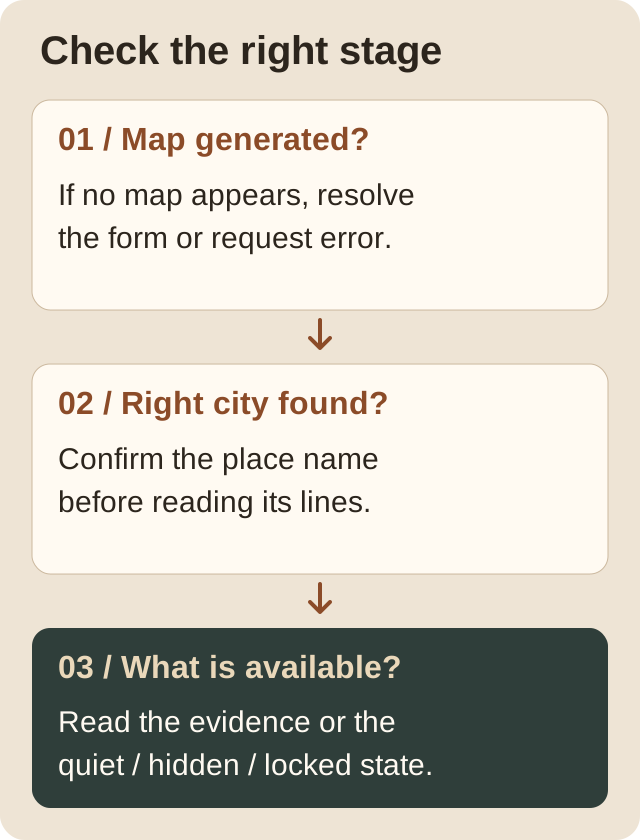
Use the message at the relevant checkpoint. A city-search problem, a quiet result, and an access restriction require different responses.
When you change the visible planets or line selection, the local summary can change because the evidence being considered has changed. That does not automatically mean the underlying birth record changed. Before comparing a result with an earlier note, check that you are looking at the same city and comparable display settings.
Keep enough information to return to the same chart
Keep a private note of the birth date, time source, birthplace, and whether the time was estimated. If you entered coordinates, preserve those too. This makes it easier to distinguish a changed input from a different place selected on the same map.
To save a birth profile with Store Astro Data, sign in and follow the storage conditions shown. Selecting that profile later helps you reuse the inputs. Review it before generating, especially when you keep records for several people. Saving birth information does not mean that every city you inspect has also been saved as a separate result.
For the first location check, your own note can be short: the city you selected, the line information actually shown, and any uncertainty or restriction. Avoid copying a friend’s map as a substitute or combining labels from different records into one description.
You are ready to move on when you can identify the birth record, the generated map, and the selected city without confusing their roles. Continue with what your personal astrocartography means if the remaining question is which lines belong to you. Detailed planetary meanings and city comparisons can come after this first, clearly identified result.
Questions before finding your chart
How to find my astrocartography chart on a phone?
Use the same birth form on this page. Complete the date, time or unknown-time setting, and birthplace, then generate the chart and move to the result below. Start with a city search rather than trying to identify a small line by sight. Confirm the selected place before reading its cards.
Can I find the chart for free?
Basic map generation is free. The standard Check City allowance includes 5 free city checks; the tool’s usage indicator shows how much of that allowance remains. Earlier use may already have consumed some of it. Generating a map does not include unlimited checks, every planetary signal, or a full paid report. Start with an available check, then review the access options if you need more.
Is my birthday or zodiac sign enough?
A Sun sign is not enough to identify a personal astrocartography map. Use your date, birthplace, and recorded local time when available. If the time is unknown, mark it accordingly. Two people with the same Sun sign should not assume they share the same geographic lines.
Can I find my exact chart without a birth time?
You can generate an estimated-time map, but it should remain labeled and understood as estimated. The unknown-time option does not make an exact chart available from missing data. Use it for orientation, and revisit precise location interpretations if you later obtain a reliable time.
Why does my map look different on another website?
First compare the entered birth date, local time, birthplace, and unknown-time status. Then compare the displayed planets, angles, and map conventions. Colors or layout alone do not establish a calculation disagreement. If a discrepancy remains, retain the inputs and a specific line or location example rather than choosing whichever reading feels preferable.
Should I generate another chart when I check a new city?
Use Check City on the existing map when only the place you want to explore changes. Generate again when you correct the birth details or intentionally switch to another person’s record. Keeping those operations separate prevents a destination search from accidentally becoming a new birth calculation.
Find your map, then check one place
Use your own birth record. Keep any uncertainty visible, generate the map, and start with a city you recognize.
Generate My Chart